TV Cast: Chromecast Smart View
TV Master - Smart TV Remote ControlHouse & Home
4.41.97K Reviews
- Version
- 5.9.3
- Installs
- 10.00M
- Age Rating
- Everyone
Screenshots

Our Review of TV Cast: Chromecast Smart View
 Analysis by Appyee
I tend to judge a screen-casting app by a simple question: does it make the moment I want to share something on TV easier, or does it add another round of setup? TV Cast: Anycast in smart view is aimed at that everyday gap between finding a photo, video, or other media on a phone and enjoying it on a larger screen. It sits in the House & Home category, and its appeal is practical rather than flashy: use a phone as a route to a TV when squinting at the small display is no longer appealing.
What the free starting point means
The app is free to download, which makes it straightforward to try before deciding whether it belongs in your routine. It also offers in-app purchases priced from $3.99 to $19.99 per item. I would treat those as optional spending to assess inside the app, not as a reason to assume that every useful feature requires payment. The sensible approach is to install it, check whether it can connect to the devices you actually use, and only then decide if any paid option is worth considering.
That distinction matters because “free” does not automatically mean every part of an app is free, while the presence of purchases does not mean you need to buy something to test its basic fit. I like being able to begin without paying, but I would still look carefully at the purchase screen before confirming anything. If your main goal is occasional casting, a free starting point may be enough; if you are considering a paid item, judge it against a specific need rather than buying on the promise of a generally better TV experience.
How it fits into everyday TV use
First things first, the setup. I was pleasantly surprised by how painless it was to get started. You just need to ensure your TV supports casting and that both your phone and TV are connected to the same Wi-Fi network. Once that's sorted, you’re pretty much halfway there. The app walks you through the rest with simple, on-screen instructions. No tech degree required!
One thing I appreciated was the intuitive interface. Everything is laid out clearly, so you’re not left scratching your head wondering what to do next. It’s basically plug-and-play, which is a huge relief for anyone who’s not super tech-savvy.
Features That Stand Out
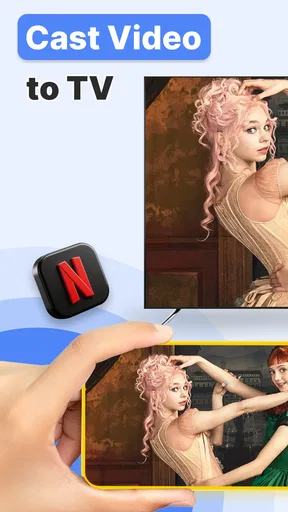
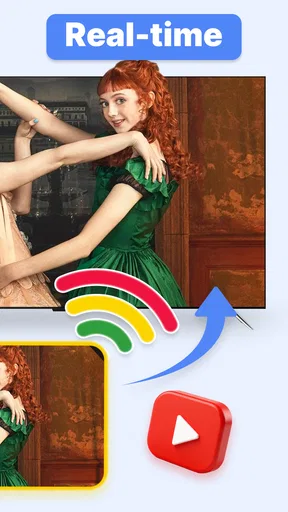
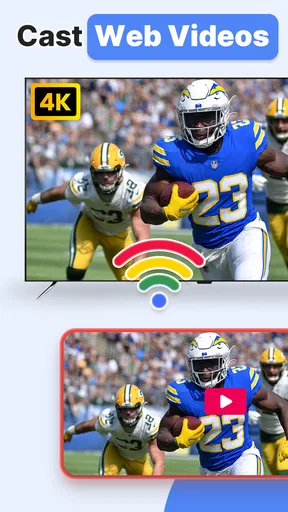
Now, let’s talk features. TV Cast: Anycast in smart view offers a variety of options that make streaming a joy. Whether you’re casting videos, photos, or even music, the app supports it all. I personally love the ability to cast directly from my browser; it’s as simple as hitting the cast button and selecting your device.
Here’s a quick rundown of some features I found particularly useful:
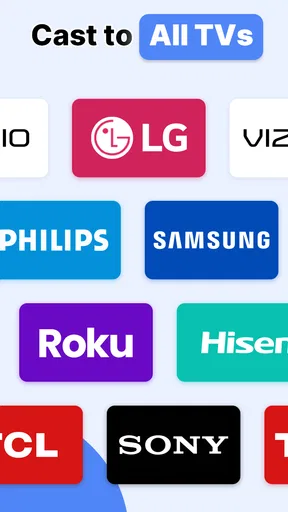
- Compatibility with a wide range of smart TVs and casting devices.
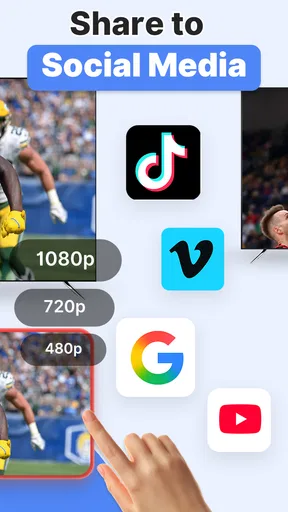
- Support for multiple media formats, so you’re not limited to certain file types.
- The app’s ability to mirror your phone screen, which is perfect for sharing photos or videos without missing any detail.
Another standout feature is the app’s stability. I didn’t experience any annoying lags or disconnections, which is crucial when you’re in the middle of a gripping episode.
Choosing the right way to share
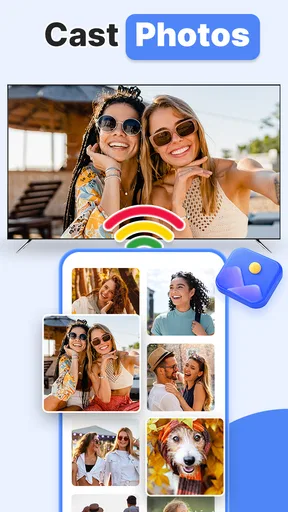
The best option depends on what you are trying to put on the TV. For a saved photo album, casting individual pictures can be tidier than mirroring the whole phone, especially if you want to keep notifications and unrelated screens out of view. For a clip or a page in a browser, direct casting is a more focused route when it works with the content and TV. Screen mirroring is the flexible fallback when you need the TV to show what is currently on your phone, but it can also expose everything visible on that screen.
That is a small but useful distinction to make before guests arrive. I would open the album, page, or video on the phone first, check what is visible, and then connect. If the goal is simply to show family a few holiday photos, there is little reason to mirror the entire display. If you are demonstrating how an app works or sharing a screen that is not a media file, mirroring makes more sense. Neither route is automatically best; choosing deliberately makes the session less awkward.
When connection problems change the plan
The same-Wi-Fi requirement is an important practical boundary, not just a setup detail. If the phone is on one network and the TV is on another, discovery may fail even when both devices have internet access. I would check the network names on both devices before restarting the app or changing settings. This quick check can save time and avoids mistaking a basic network mismatch for a compatibility problem.
TV support also matters. The app is useful only when the television or casting device can receive the kind of connection you are trying to make. If it does not appear, I would first confirm that casting is supported and enabled on the TV, then try again with both devices on the same network. For a TV that lacks compatible casting, a wired connection or a separate receiver may be a more dependable answer than repeatedly troubleshooting an app.
A realistic evening use
Imagine a friend visiting after dinner and asking to see a short video saved on your phone. Instead of passing the phone around or crowding around its screen, you can check that the TV and phone share Wi-Fi, open the video, and try casting it. If the clip does not transfer cleanly, mirroring gives you another way to show it, though you will want to keep private notifications out of view. For a batch of pictures, selecting the album and casting those images is likely a more comfortable way to let everyone watch together.
That kind of casual sharing is where I see the clearest value. It is not a complicated home-theater control center; it is a bridge from phone content to a larger display. The experience still depends on the TV and network behaving as expected, so I would not rely on it as the only plan for an important presentation. For informal moments at home, though, being able to try a wireless option before reaching for cables is genuinely convenient.
How it compares with familiar alternatives
Many smart TVs already include their own casting or screen-sharing tools, and those built-in options are worth trying first if they connect reliably to your phone. They may be the simplest choice when your devices already work well together. A separate casting app becomes more appealing when you want one place to start sharing different kinds of phone media or when the built-in route feels less clear. It is a convenience layer, not a guarantee that every TV will behave the same way.
A cable is less elegant but can be the better option when wireless discovery is unreliable or when you need a predictable connection. Likewise, a TV’s own remote and installed streaming apps are usually better for watching a service for which you already have an app on the television; casting from a phone is not necessarily an improvement in that situation. I would use this app for content that is already on or being viewed through the phone, and use the TV’s native options when they are more direct.
User Experience: Smooth Sailing
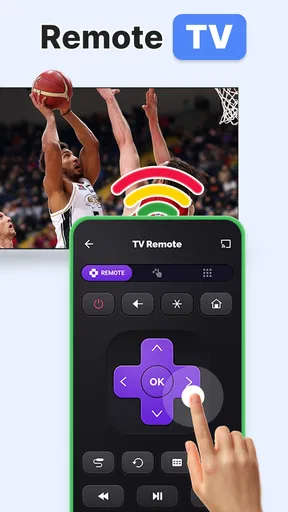
Using the app feels like second nature. It’s clear that a lot of thought went into making the user experience as smooth as possible. The controls are intuitive, and you can easily pause, play, or skip content right from your phone.
I also appreciate the app’s design. It’s minimalistic yet functional, with no unnecessary clutter. The focus is on performance, and it shows. Plus, there are helpful tooltips and guides if you ever get stuck, which is a nice touch.
There are still trade-offs to keep in mind. Wireless playback depends on the connection between devices, and a smooth first attempt at home does not guarantee identical results on another TV or network. A phone also remains part of the process, so you may need to keep it nearby and use its controls. If you want a TV-only experience that continues without reaching for your phone, opening the content directly on the television may suit you better.
Who is likely to get value from it?
I would recommend trying it if you regularly share phone photos, browser content, videos, or music with people in the same room and have a compatible TV or casting device. It is particularly handy for households where one person usually has the media on their phone and wants an easy way to move it to the larger screen. The app has been available since September 17, 2020, and its current version is 5.7.2; it runs on Android 5.0 and newer. The developer is TV Master - Smart TV Remote Control.
Its audience is broad: the content rating is Everyone, and it has passed 10 million installs, with an average rating of 4.4 from 152,000 ratings and 2,000 reviews. Those figures suggest that many people have tried it, but they do not tell me whether it will connect to a particular television or whether a paid purchase will suit an individual user. I would still test it with your own setup instead of treating popularity as a compatibility guarantee.
I would skip it, or at least avoid making it your main solution, if your TV does not support casting, your home network keeps devices isolated from one another, or you mainly watch content through apps already installed on the TV. It is also not the first tool I would choose for a formal presentation where failure would be costly; a tested wired connection or the display’s own sharing method is safer when predictability matters more than convenience.
Why You Should Give It a Try
So, why should you consider downloading TV Cast: Anycast in smart view? Well, if you’re tired of squinting at your phone screen or dealing with cumbersome cables, this app is a must-have. It transforms your media experience, allowing you to enjoy your favorite content on the big screen with minimal effort.
Overall, it’s the simplicity and reliability that make this app a standout choice for anyone looking to enhance their home entertainment setup. It’s a solid investment for your streaming needs, and I honestly can’t see myself going back to the old ways of casting.
Ready to take your streaming to the next level? Head over to the app store and give TV Cast: Anycast in smart view a whirl. Happy casting!
My verdict is to start with the free download, try a real task you care about, and see how it behaves with your own phone, network, and TV. If that trial makes sharing noticeably easier, the app has earned a place in your routine. If connection checks become a recurring chore, the TV’s own apps, built-in sharing, or a cable may be a better fit. I would consider an in-app purchase only after identifying a feature I actually need and weighing its listed price; for occasional casting, paying is not automatically necessary.
Verdict
Strengths of TV Cast: Chromecast Smart View
- Easy setup with clear instructions.
- Supports a wide range of devices.
- High-quality video streaming.
- User-friendly interface design.
- Regular updates for improvements.
Limitations of TV Cast: Chromecast Smart View
- Limited free features.
- Occasional connectivity issues.
- Ads can be intrusive.
- Requires strong Wi-Fi connection.
- Not all formats are supported.
Similar Picks in This Category
View All
Universal TV Remote Control
CodeMatics Media Solutions3.9

AlfredCamera Home Security app
Alfred Systems Inc.4.7

Planner 5D: AI Home Design
Planner 5D4.5

Universal Tv Remote-Cast to TV
One Music Player4.1

Zillow: Homes for Sale & Rent
Zillow Group4.8

99acres Buy/Rent/Sell Property
infoedge.com4.3
Frequently Asked Questions
What is TV Cast: Anycast in smart view and how does it work?
TV Cast: Anycast in smart view is an app that allows users to stream content from their mobile devices to a TV or compatible screen via wireless casting technology. It supports various formats and is compatible with popular devices like Chromecast, Roku, and smart TVs. Simply connect both devices to the same Wi-Fi network and follow the app's instructions to start casting.
Is TV Cast: Anycast in smart view compatible with all smart TVs?
While TV Cast: Anycast in smart view is designed to work with a wide range of smart TVs, compatibility can vary based on the TV brand and model. It generally supports popular brands like Samsung, LG, Sony, and Vizio. Before downloading, it's recommended to check the app's compatibility list or test the free version to ensure seamless functionality with your specific TV.
Are there any additional costs or in-app purchases in TV Cast: Anycast in smart view?
TV Cast: Anycast in smart view offers a free version with basic casting features. However, to unlock premium features such as ad-free usage, enhanced streaming quality, and additional format support, users may need to purchase a subscription or make in-app purchases. The app provides clear details on pricing and features in the app store description.
What kind of content can I stream using TV Cast: Anycast in smart view?
With TV Cast: Anycast in smart view, users can stream a wide variety of content including videos, photos, and music from their mobile device to their TV. Additionally, the app supports streaming from popular online platforms such as YouTube, Netflix, and other video services, making it a versatile tool for enhancing your viewing experience.
How do I troubleshoot common issues with TV Cast: Anycast in smart view?
If you encounter issues with TV Cast: Anycast in smart view, ensure both your mobile device and TV are connected to the same Wi-Fi network. Restart both devices and try again. Check for any app updates that might address bugs. If problems persist, consult the app's support section or contact customer service for further assistance.
